
When you migrate a website to a new host, it’s crucial to preview it to ensure everything is working as expected before you update the NS (Name Server) records of your domain. This tutorial guides you through creating a temporary URL in cPanel using the Website Preview tool.
1) Log into cPanel.
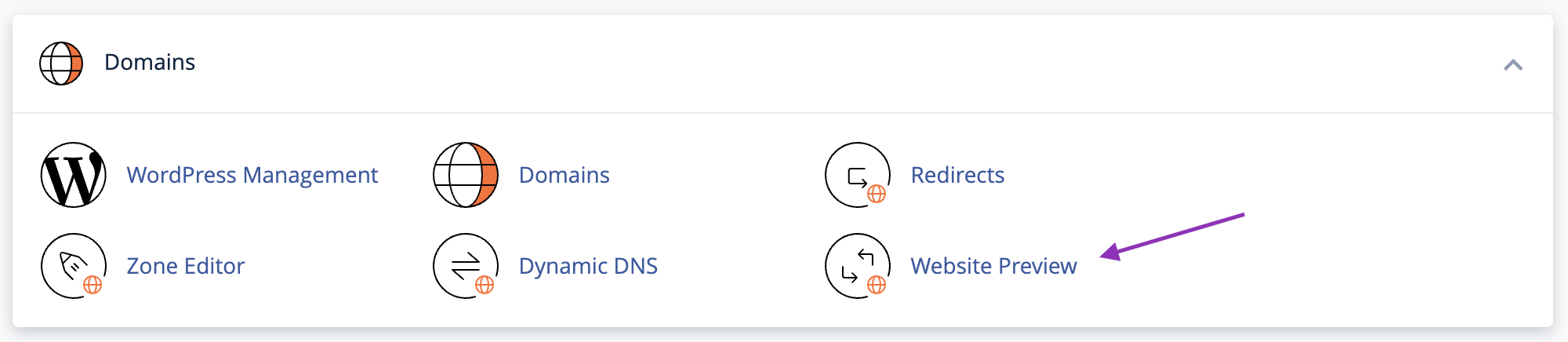
2) Click the “Website Preview” button in the Domains section.
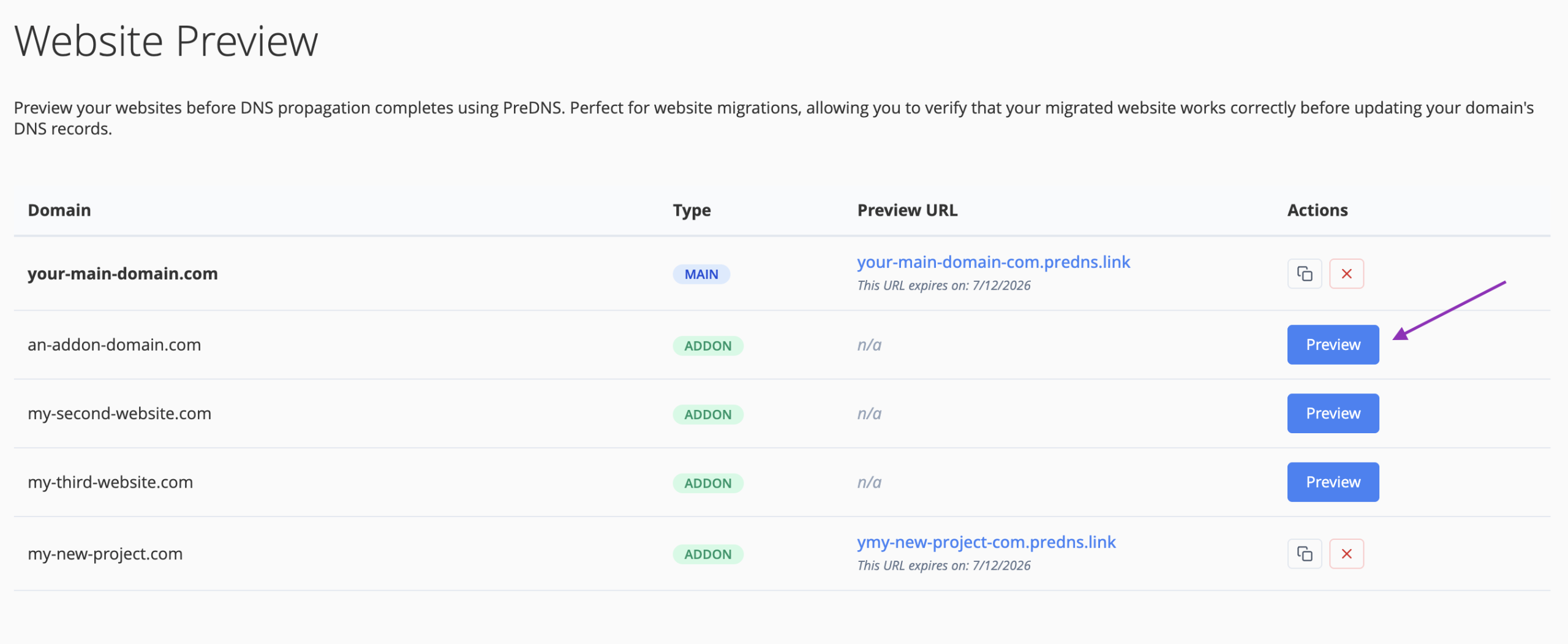
3) Click the “Preview” button next to your domain to generate the unique temporary URL.
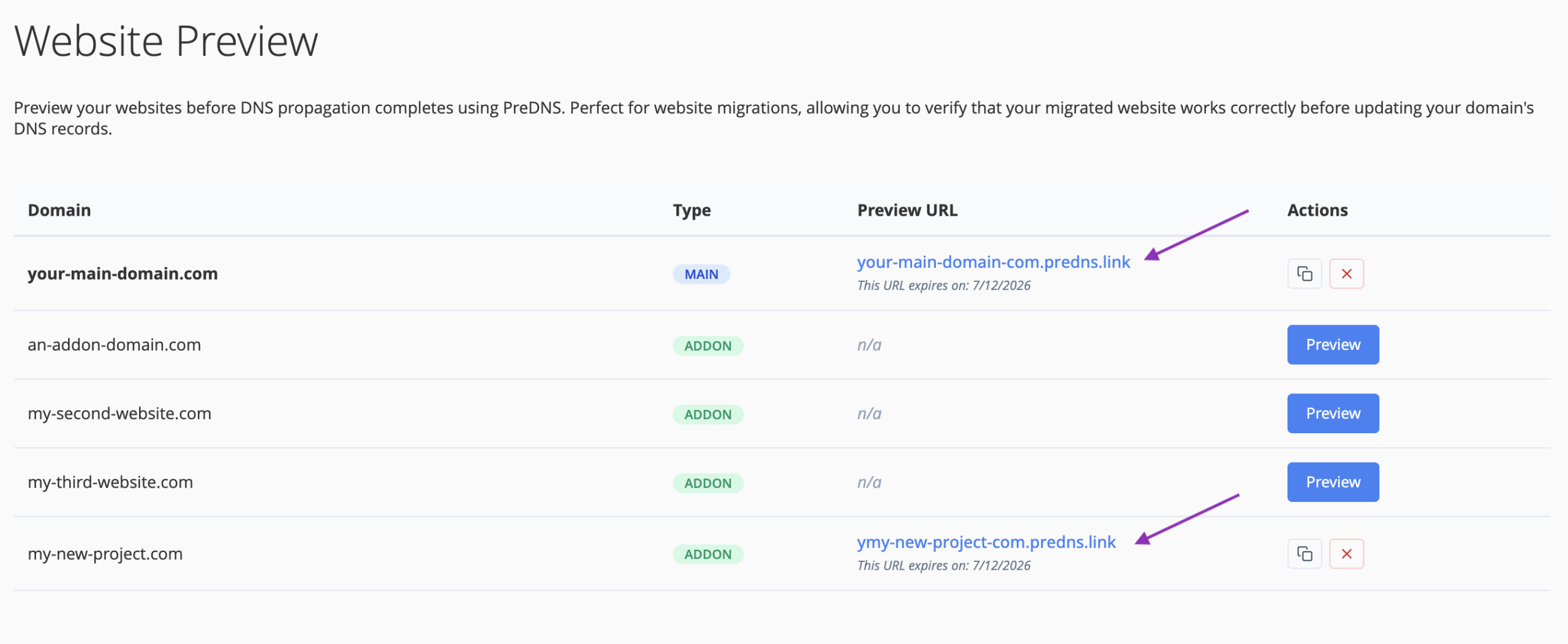
4) Click the any of the generated preview URLs to load them in a new browser tab.
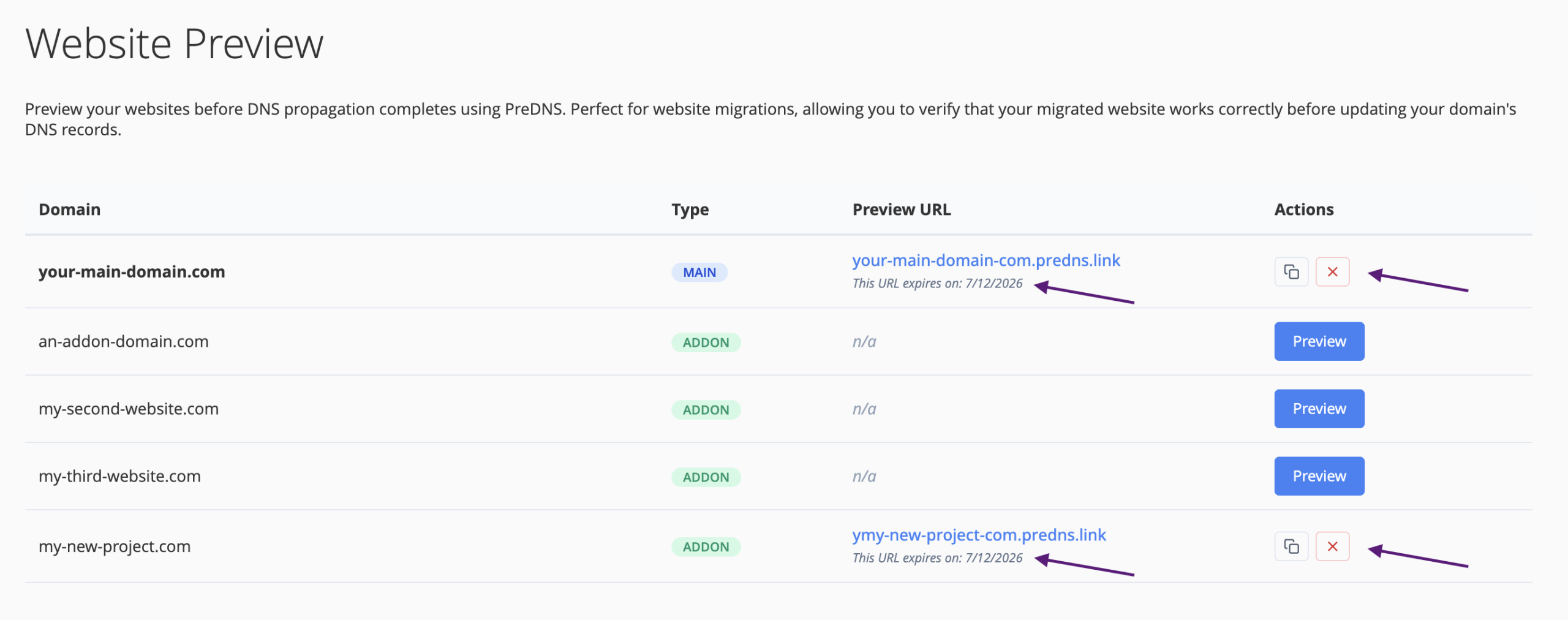
5) Every preview URL you generate will automatically expire after 30 days. You can also delete a preview URL at any time using the Action menu. For added convenience, the Action menu includes an option to instantly copy the generated preview URL to your clipboard.
Once the page opens, you’ll see the temporary URL in your browser tab similar to yourdomain.predns.link, which you can copy and use later or share with others.
Using the Website Preview tool in cPanel is a straightforward and effective way to ensure your website migration is smooth and error-free. Always double-check your site’s functionality before making the final switch with NS record updates.