
Quite a few problems with email are related to mail client settings. With so many different email clients out there, it can be confusing at times setting up your email client with the proper settings. This tutorial will help you with some basic email troubleshooting steps to get your email back up and running.
Email Troubleshooting (Sending or Receiving Issues)
Do you have an Internet Connection?
Ensure you have an internet connection. To test that, click here to open Google. If it opens, congrats, you have internet connectivity. That means the problem with your email may not be related to your internet connectivity.
If Google won’t open, contact your ISP or Network Administrator.
Are The Email Server Settings In Your Client Correct?
Make sure you’re using the correct email server settings.
If you host your email with your hosting here at ChemiCloud, your mail server settings would be as follows:
Under Incoming server:
Enter the IMAP server as mail.yourdomain.tld
Select SSL as the Security type
Enter 993 for Port
Under Outgoing server:
Enter the SMTP server as mail.yourdomain.tld
Select SSL as the Security type
Enter 465 for Port
In your email client, the setting for “Require authentication to send mails” should be toggled on.
Your username should be formatted as ‘[email protected]’, not simply ‘yourusername’ in your email client to send and receive email.
Additionally, if you are a ChemiCloud customer, please review our Knowledgebase Section on Email Client Setup by clicking here.
Are You Using The Correct Password?
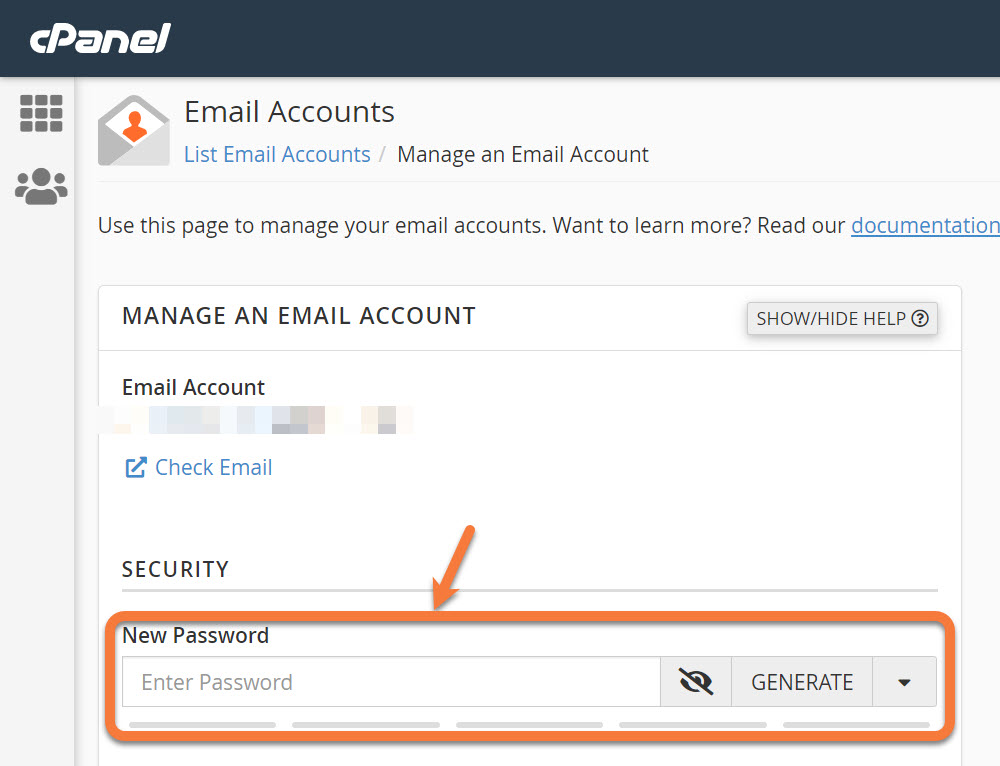
Ensure you are using the correct password. If you are not 100% sure, you can login to your cPanel and visit the Email Accounts to change the password. See below:
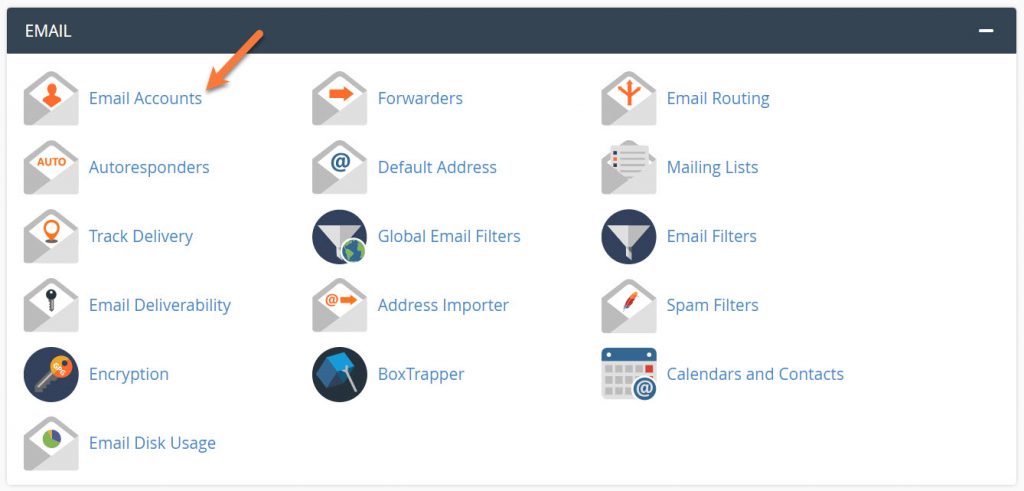
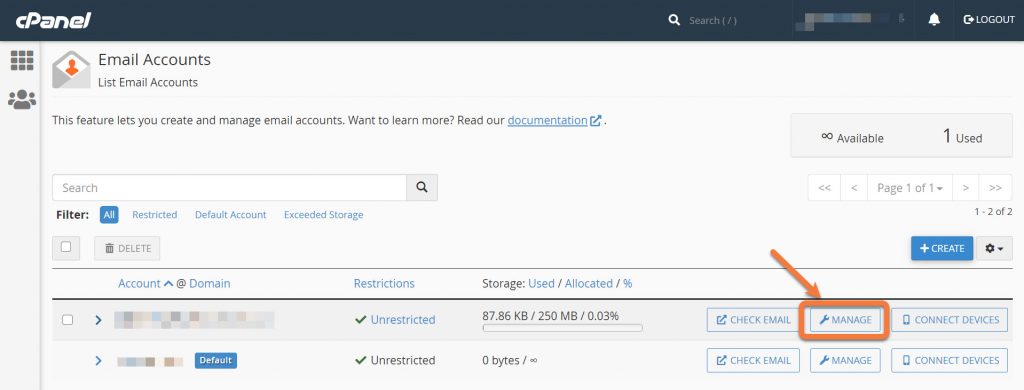
Next, find your email account in the list of accounts and click the Manage button.
On the screen that opens, you’ll have the ability to change the password.
Be sure to click the blue “Update Email Settings” button at the bottom to save your changes.
After changing your password in cPanel > Email Accounts, you will immediately be able to use that password in your email client and your webmail.
Is Your Account Restricted?
If you have access to your cPanel, you can go to the Email Accounts area, Manage your Account, and configure Restrictions for each email account, such as the ability to receive incoming mail, send outgoing mail, and even login to the account. To check this, follow the screenshots below.
In cPanel, find and open the Email Accounts Area:
Next, find your account in the list of email accounts and click Manage.
Scroll down and under the Restrictions area, ensure your account is not restricted.
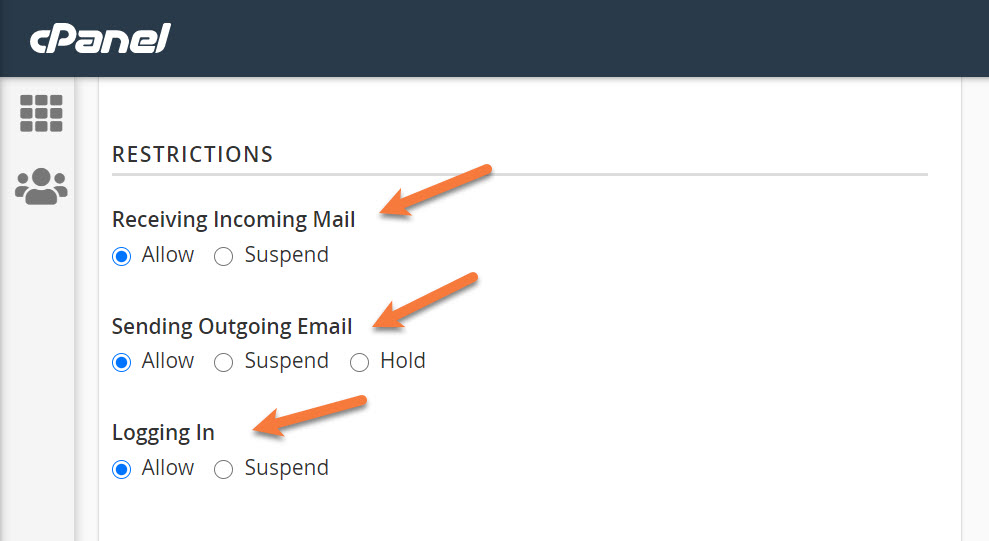
If you make any changes, be sure to click the blue “Update Email Settings” button at the bottom to save your changes.
Is Your Account Over It’s Storage Limit?
In cPanel, you can allocate a defined amount of storage space to email accounts. And even though they can be set to have an Unlimited amount of storage, ultimately the amount of storage they can consume is limited to the amount of overall storage in your hosting plan or the plan your reseller has assigned you. It is important to keep this in mind if you have email accounts set to Unlimited storage.
To check if your account is at or over the limit, open your cPanel and navigate to the Email Accounts area.
Next, find your email account in the list and click Manage.
Underneath Storage, check “Current Storage Usage”. For example, the account below is using 87.86 KB and is allowed to use 250 MB.
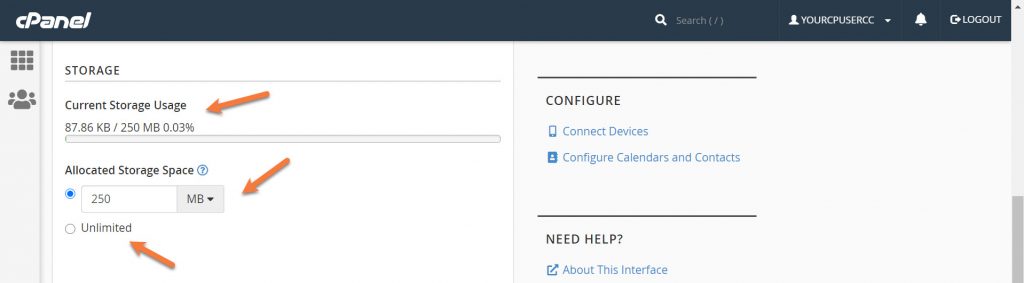
If your account is over it’s limit, you can increase the limit by entering new values or set it to Unlimited storage.
Be sure to click the blue “Update Email Settings” button if you make any changes.
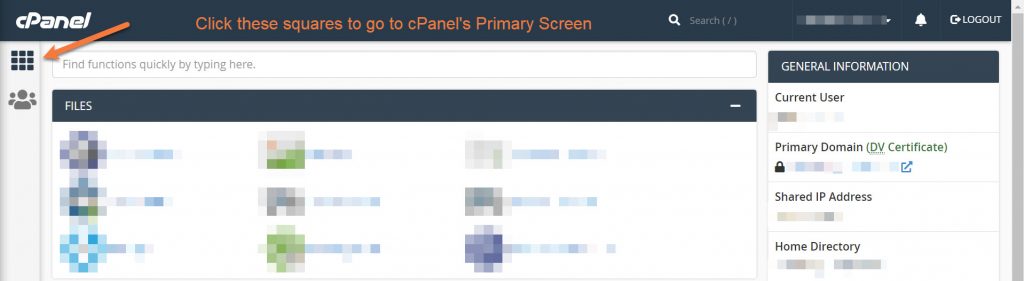
If your account is not at it’s configured storage limit, or the account is set to Unlimited, you should check if your cPanel account is at it’s storage limit. To do this, navigate back to the main cPanel page by clicking the square box with 6 inner squares in the top left corner of cPanel.
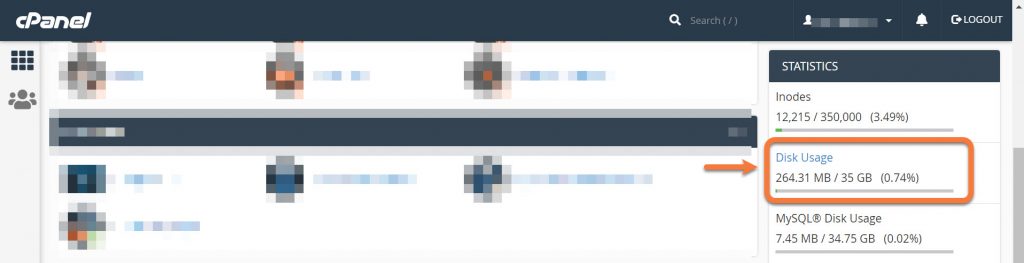
Next, on the right hand side of cPanel beneath the General Information area is a section called Statistics. You may need to expand this section. Upon expanding it, look under Disk Usage and see where your Disk Usage is.
Are You Sending An Attachment That’s Too Big?
At ChemiCloud, the maximum attachment size you can send in a single email is 50 MB (MegaBytes). Despite this, many email providers are only able to receive attachments up to 25 MB (MegaBytes) in size. If you are sending lots of attachments, you may want to break them up into multiple email messages.
Below is a list of the max attachment size for messages being sent or received for popular email providers below:
- AOL – 25 MB per email
- Gmail – 25 MB per email
- GoDaddy WorkSpace 30 MB (per email) and 20 MB (per file)
- iCloud – 20 MB per email, but Apple recommends only 10 MB per email
- Mail.com – 50 MB per email
- Outlook and Hotmail – 34 MB or sharing via OneDrive 2 GB
- ProtonMail – 25 MB per email
- Rackspace Email – 50 MB per email
- Yahoo! Mail – 25 MB per email
- Zoho Mail – Depends on your plan. For personal users, 20 MB, organizations may have higher email attachment limits such as 250 MB, 500 MB, or 1 GB
Are You Sending To Too Many People At Once?
At ChemiCloud, for all hosting plans except VPS plans, there is a limit of 300 messages per hour. This means if you are trying to send one email message to 300 people, and then you attempt to send another email, whether it is to one person or 300, the message will be queued on our servers until the hour is up, at which time the message will be delivered.
Something Else?
If you’re a ChemiCloud customer and have reviewed all of these steps, but still have problems, be sure to open a ticket from your Client Area or hop on our live chat service where you can talk to our Happiness Engineers and get your email questions answered 24×7.
My instagram account is a Restricted
I forgot password with recovery email
I cannot open email or delete same. Microsoft chanrs domething every singe day. Fed up~~~~~~~~~SARAAmILLER