
Your WooCommerce site can become slow over time, one of the reasons could be due to WooCommerce AJAXCart Fragments cluttering up the works. If you run an audit of what’s making your site slow, you may see a lot of slow queries relating to the “/?wc-ajax=get_refreshed_fragments URL.
Not to worry, this KnowledgeBase article will get you sorted in no time!
What is WooCommerce AJAX Cart Fragments?
First, let’s address (briefly) what is AJAX?
In web development, AJAX stands for Asynchronus Javascript and XML, and is a web development tool that in essence allows you to create complex web applications which can update in real-time without requiring a page refresh.
Think about the Add to Cart button on your WooCommerce store. When you add more items to the cart, the number indicating the total number of items in your cart updates in real-time and you don’t have to refresh the page.
AJAX is what makes this work. Now that you know that AJAX is more than a cleaning chemical you use to clean the bathroom, let’s talk about WooCommerce AJAX Cart Fragments.
The URL “yourwebsite.com/?wc-ajax=get_refreshed_fragments represents WooCommerces attempt to get the shopping cart details so it can be ready to recalculate the cart each time the customer does something. This update enables WooCommerce to keep the cart widget updated and immediately “listen” to any Ajax Add to Cart events that might require the cart to be updated.
AJAX is an excellent web technology and standard, but don’t underestimate the performance implications and potential plugin conflicts this feature can bring.
Why disable WooCommerce AJAX Cart Fragments?
To make the Cart widget update on each page of your website, WooCommerce will run this AJAX feature each time. Even on pages that have no products!
If your theme doesn’t provide a WooCommerce cart drop-down widget and if you have no products that can be added to a cart on a specific page like your About, Contact, or Homepage, you can remove the entire AJAX functionality.
Even more interestingly, if you choose from your WooCommerce settings to redirect users to the Cart after adding a product to their cart, you’re forcing a page redirect to the Cart page, so the AJAX function is pointless and consuming resources for no reason.
How to disable WooCommerce AJAX Cart Fragments
You can disable this feature in a variety of ways. We’ll cover a few methods below.
Disable Cart Fragmentation on your FrontPage.
Step 1: Open your /wp-admin and in the Admin Panel, navigate to Appearance > Editor, then locate your functions.php file.
Add this code to the end of the file:
/** Disable Ajax Call from WooCommerce */
add_action( 'wp_enqueue_scripts', 'dequeue_woocommerce_cart_fragments', 11);
function dequeue_woocommerce_cart_fragments() { if (is_front_page()) wp_dequeue_script('wc-cart-fragments'); }
Click Update File to save your settings.
Step 2: Once your file is updated, navigate to WooCommerce > Settings, then go to the Display section under the Products tab. Enable the checkbox next to the option “Redirect to the cart page after successful addition.”

This will help the customer goes to the main cart page instead of waiting for a long time after the item is added into the cart. Otherwise, though the item is added, your shopping cart may not show the updated details when you are on the same page as the cart fragmentation script is disabled.
Disable Cart Fragmentation on Your Front Page & Posts
While the code above will disable the cart fragment script only on the static front page, if you want to disable the script on all posts, use the code below in your themes functions.php file, just as above:
/** Disable Ajax Call from WooCommerce on front page and posts*/
add_action( 'wp_enqueue_scripts', 'dequeue_woocommerce_cart_fragments', 11);
function dequeue_woocommerce_cart_fragments() {
if (is_front_page() || is_single() ) wp_dequeue_script('wc-cart-fragments');
}
Struggling with WordPress troubleshooting? ChemiCloud is the hosting solution designed to save you time and money! 🤓 Try our Managed WordPress Hosting plans for just $1!
Disable All WooCommerce Styles & Scripts Site-Wide
If you haven’t noticed, WooCommerce is a resource-hungry plugin that can cause it to take a moment to load all the relevant stylesheets and scripts it needs. If you have only a few products with hundreds of thousands of blog posts, it makes sense to disable all WooCommerce relevant stuff on the blog posts. In other words, you would only have the WooCommerce scripts needed running on shop or product pages so that other pages will load faster.
To do this, add the code below to your theme’s functions.php file. The code will first check whether WooCommerce exists on your site, then it will disable the styles and scripts on all pages except the product, cart, and checkout pages.
/** Disable All WooCommerce  Styles and Scripts Except Shop Pages*/
add_action( 'wp_enqueue_scripts', 'dequeue_woocommerce_styles_scripts', 99 );
function dequeue_woocommerce_styles_scripts() {
if ( function_exists( 'is_woocommerce' ) ) {
if ( ! is_woocommerce() && ! is_cart() && ! is_checkout() ) {
# Styles
wp_dequeue_style( 'woocommerce-general' );
wp_dequeue_style( 'woocommerce-layout' );
wp_dequeue_style( 'woocommerce-smallscreen' );
wp_dequeue_style( 'woocommerce_frontend_styles' );
wp_dequeue_style( 'woocommerce_fancybox_styles' );
wp_dequeue_style( 'woocommerce_chosen_styles' );
wp_dequeue_style( 'woocommerce_prettyPhoto_css' );
# Scripts
wp_dequeue_script( 'wc_price_slider' );
wp_dequeue_script( 'wc-single-product' );
wp_dequeue_script( 'wc-add-to-cart' );
wp_dequeue_script( 'wc-cart-fragments' );
wp_dequeue_script( 'wc-checkout' );
wp_dequeue_script( 'wc-add-to-cart-variation' );
wp_dequeue_script( 'wc-single-product' );
wp_dequeue_script( 'wc-cart' );
wp_dequeue_script( 'wc-chosen' );
wp_dequeue_script( 'woocommerce' );
wp_dequeue_script( 'prettyPhoto' );
wp_dequeue_script( 'prettyPhoto-init' );
wp_dequeue_script( 'jquery-blockui' );
wp_dequeue_script( 'jquery-placeholder' );
wp_dequeue_script( 'fancybox' );
wp_dequeue_script( 'jqueryui' );
}
}
}Disable Cart Fragmentation Using a Plugin
If you’re not comfortable with code, don’t worry! Like most things in WordPress, you can also do it with a plugin. In this case, you can use the plugin Disable WooCommerce Bloat!
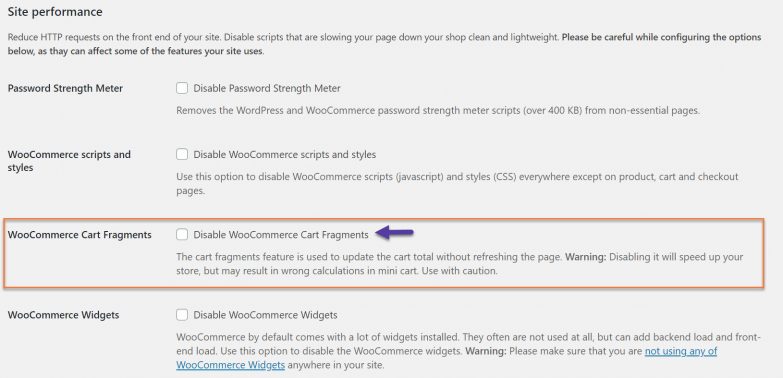
Once you’ve downloaded and installed the plugin, go to it’s settings and scroll down to the Site Performance section. Then check the box next to Disable WooCommerce Cart Fragments and click the Save Changes button at the bottom.
And that is how you disable the WooCommerce Cart Fragments in a variety of ways.
If you enjoyed this tutorial, then you’ll love our support! All ChemiCloud’s hosting plans include 24/7 support from our amazing support team.
I tried all of these edits to the functions.php file. None worked. The “wc-ajax=get_refreshed_fragments” still showed on the GT-Metrix waterfall display with about 1.5seconds. I tried the Disable WooCommerce Bloat plugin, disabled the Cart Fragments. Didn’t work. It still shows on the waterfall.
Disappointing. 🙁
Hey, there Sanjay,
You’re most welcome. Glad that we could be of help! If you need a more reliable host, we would love to help!
I found your article when searching for a solution to deal with my use case. Thank you for what I hope will be the solution!