
The ability for other people to find you on Google is a super important step in having a website. Fortunately, the website builder lets you insert your Google Analytics ID!
This Knowledgebase Article covers how to link your website built with the Website Builder to your Google Analytics ID.
How to Add Google Analytics to your Site Created by the Website Builder
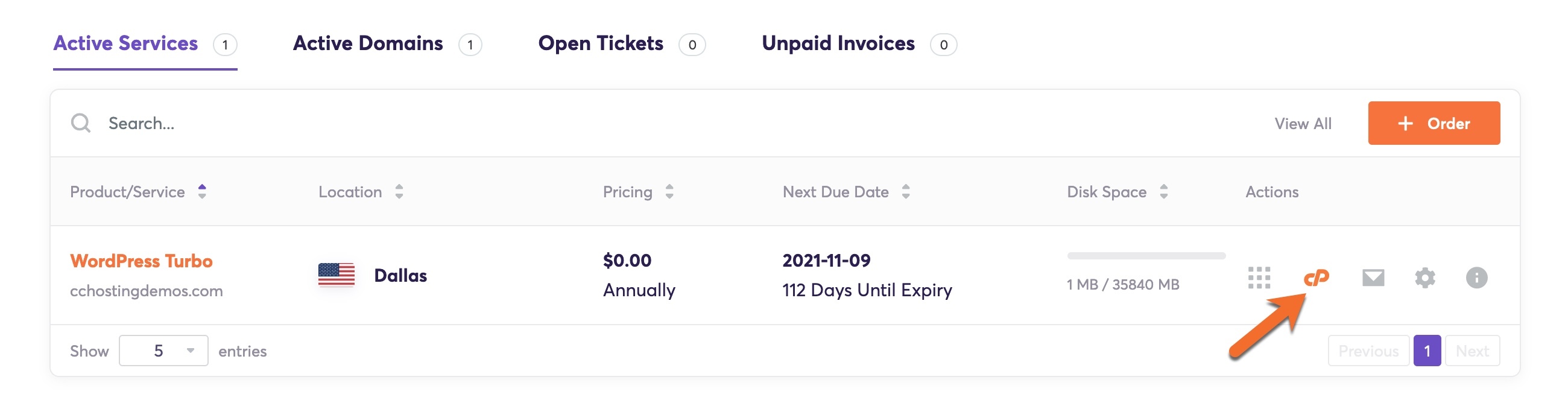
Step 1: Login to your cPanel. There’s a lot of ways to do this, but the sure fire easiest way is to login to your Client Area, then open your cPanel.
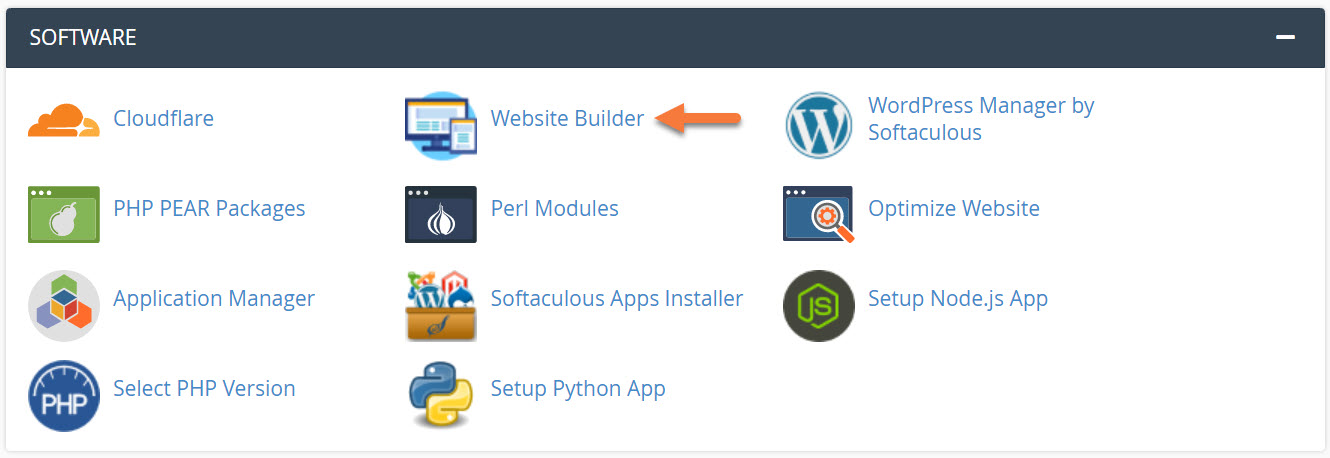
Step 2: Scroll down to the Software section and open the Website Builder:
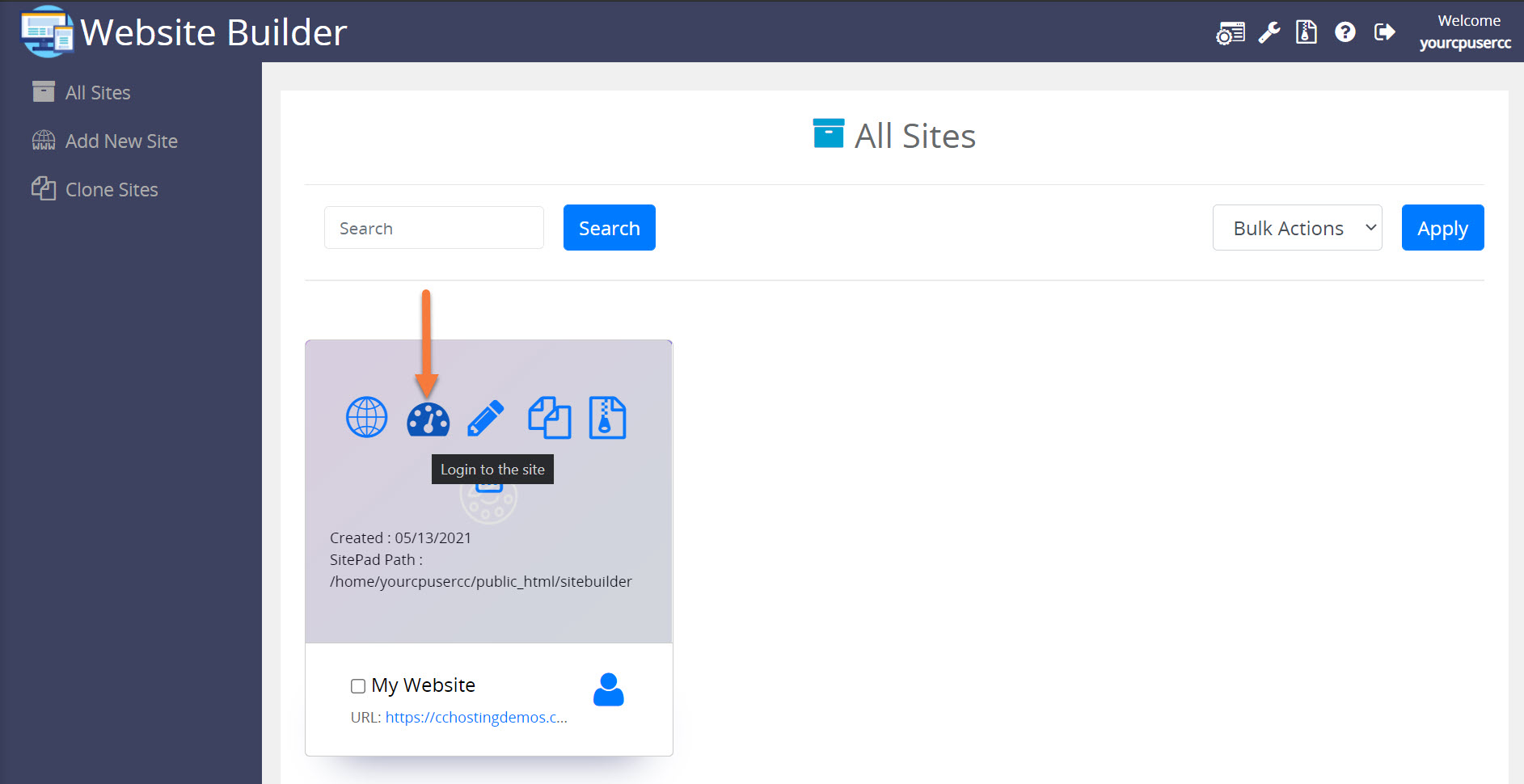
Step 3: Your list of sites will load. Locate the site edit, then hover over that site and click the speedometer icon to login to the site.
Step 4: Once the Website Builder Admin opens, click Advanced from the menu on the left, then click Google Analytics.

Step 5: Enter your Google Analytics Property or Tracking ID on this page, then click Save Changes.
This will link your site to your Google Analytics property and you’ll soon see information from your website trickle in to Analytics.

And that’s how you add your Google Analytics ID to your Website!