
If you find yourself designing a website using the Website Builder for a client who’s native language isn’t English, you may find it useful to change the Language on their site to their native tongue when you’re ready to deliver the final design to them.
This Knowledgebase Article will show you how to change the language of the website built with the Website Builder.
How to Change the Language Used on a Site Created with the Website Builder
Changing the language is very easy!
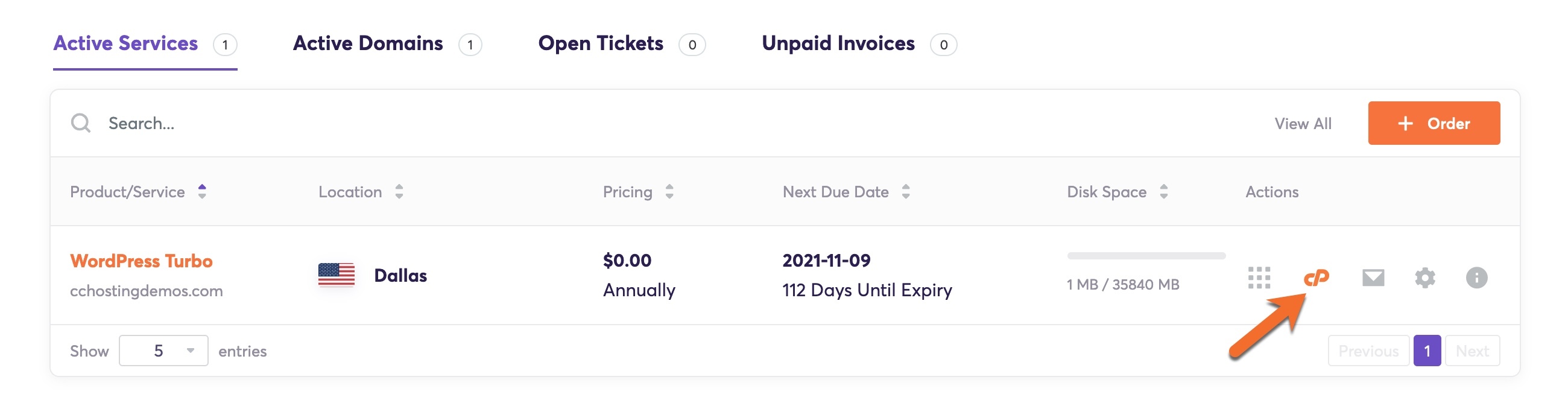
Step 1: Login to your cPanel. There’s a lot of ways to do this, but the sure fire easiest way is to login to your Client Area, then open your cPanel.
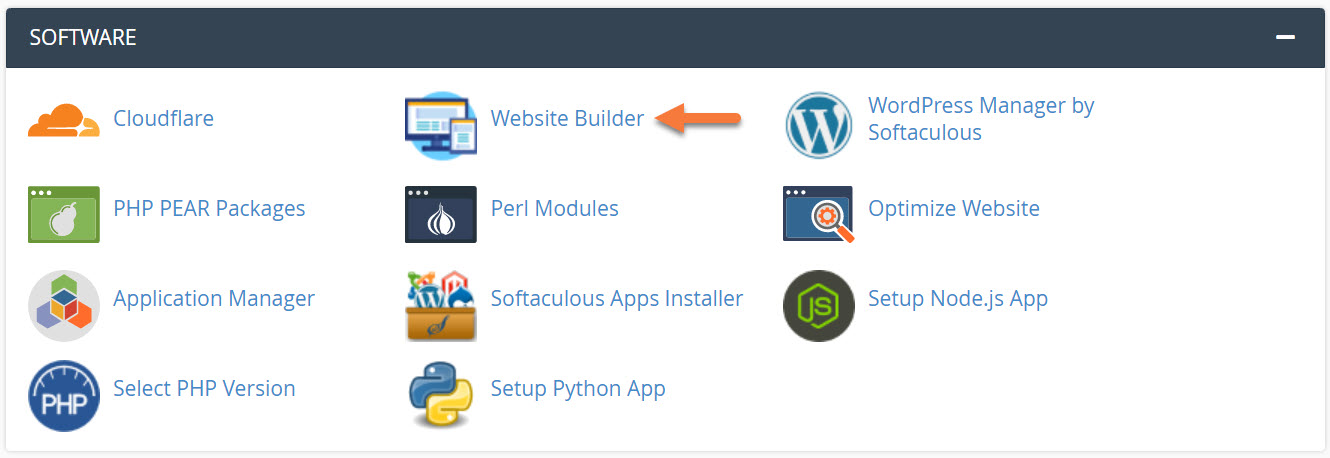
Step 2: Scroll down to the Software section and open the Website Builder:
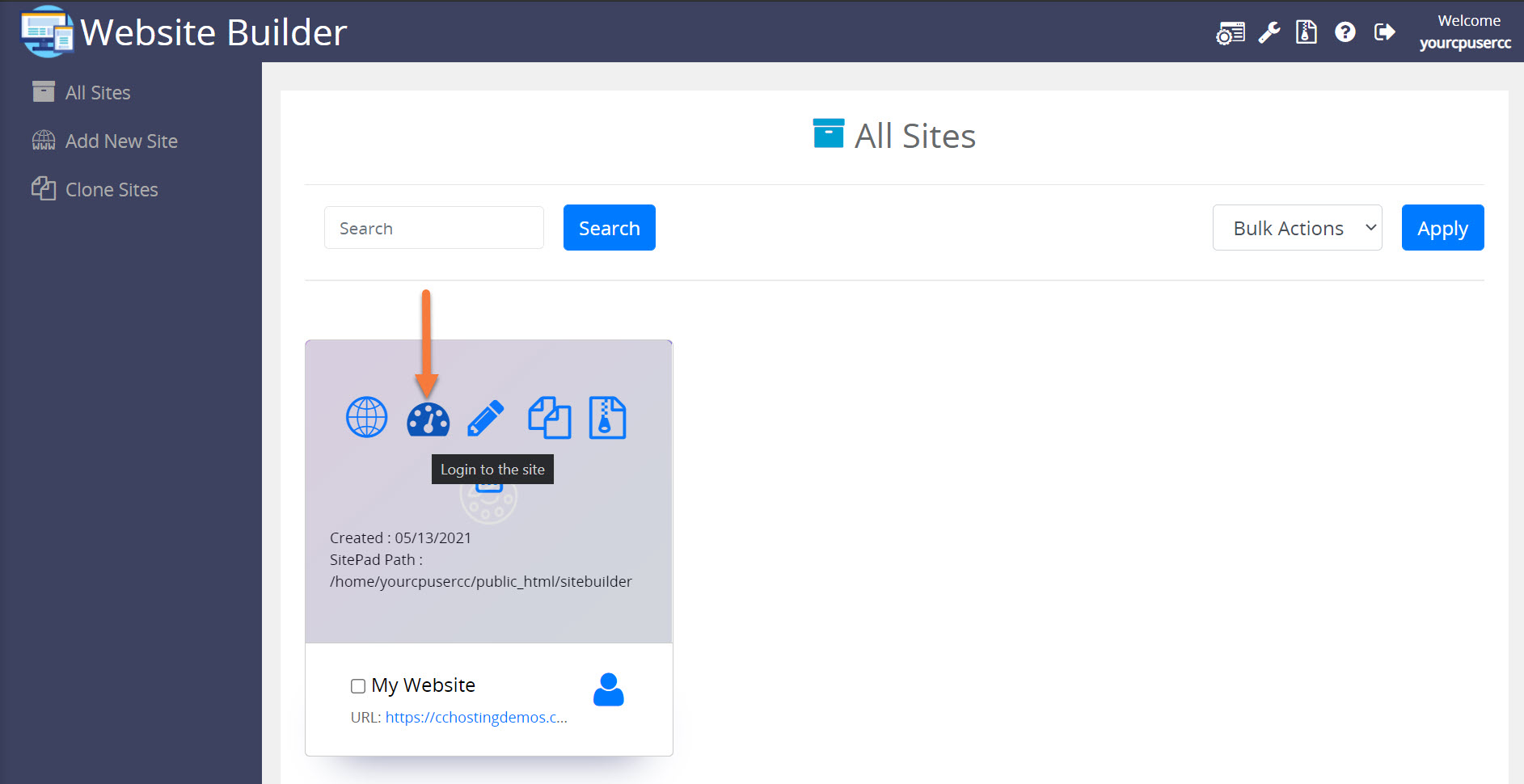
Step 3: Your list of sites will load. Locate the site edit, then hover over that site and click the speedometer icon to login to the site.
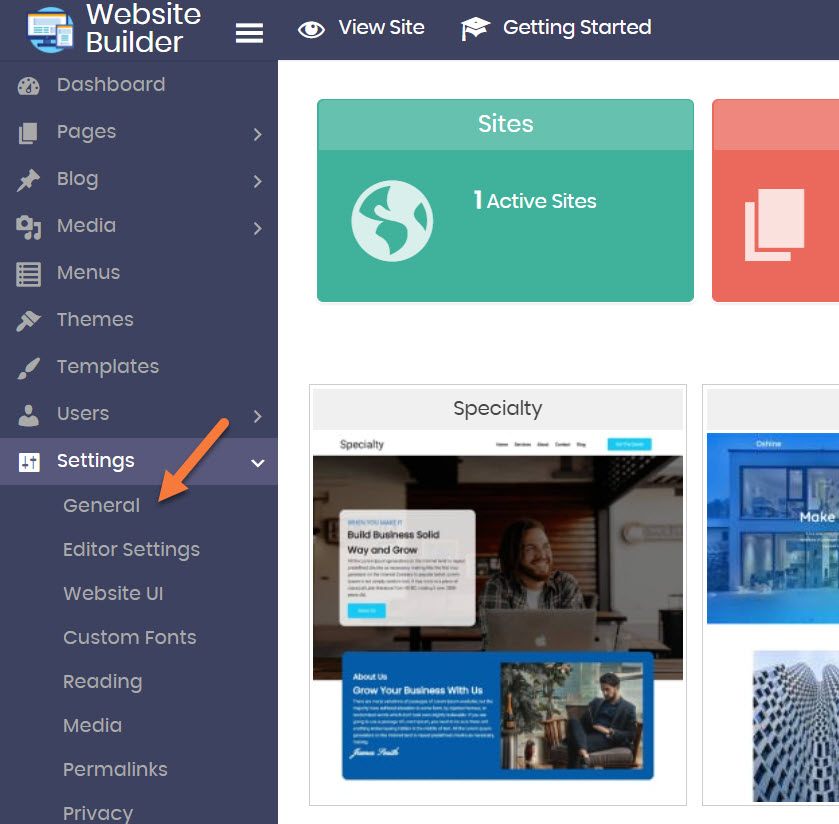
 Step 4: Click Settings from the menu on the left side, then click General.
Step 5: When the General Settings open, look for the “Site Language” field. Click the dropdown to choose a language.
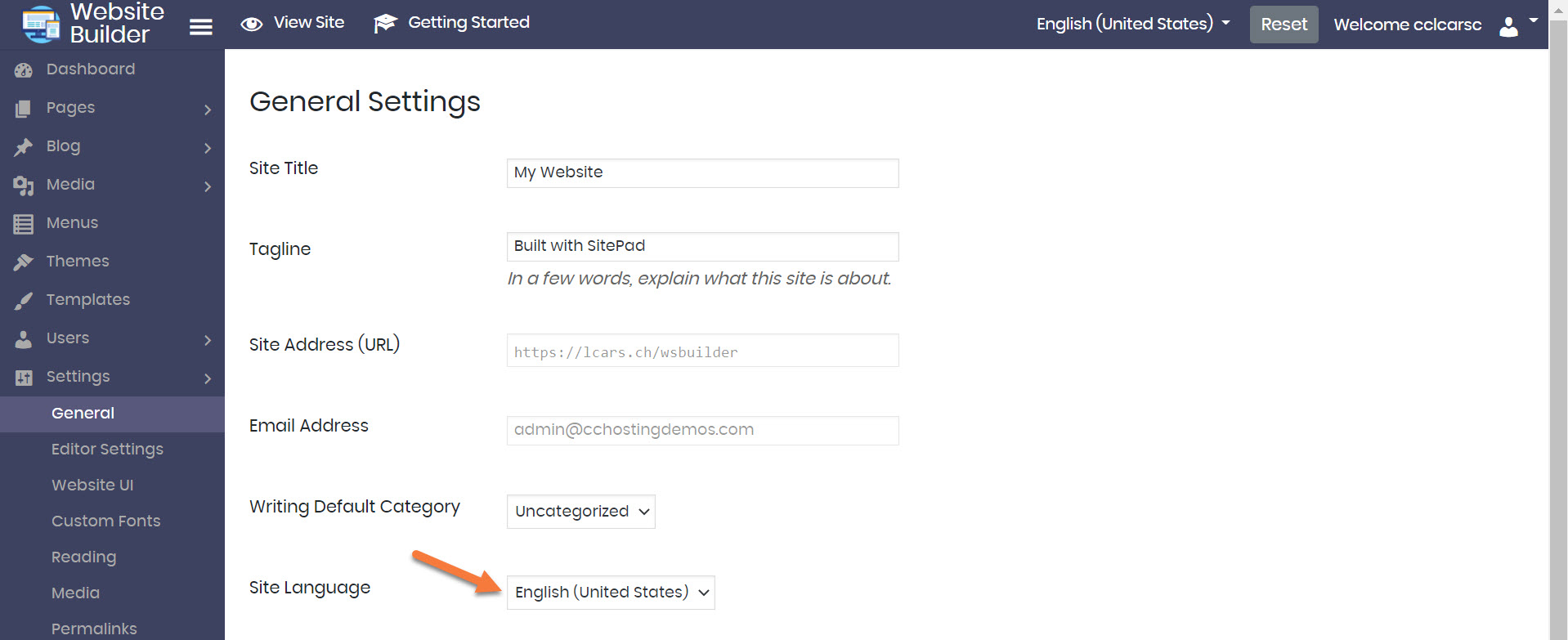
Be sure to click Save Changes at the bottom of the page (not pictured in the image above).
And that’s how you change the Language on a website built with the Website Builder!
Great guide! Changing the language on a website is crucial for client satisfaction, especially for non-English speakers. This simple process in the Website Builder makes it easy to personalize the site. Thanks for breaking down the steps so clearly—this will definitely come in handy when working with international clients!