
If you need assistance from our team, you can securely grant access to your Hostinger account without sharing your login credentials. This Knowledge Base article will show you how to delegate access to your Hostinger account
By adding [email protected] as a collaborator, our team can review your setup and assist you faster while keeping your account secure.
How to Grant Access in Hostinger
Follow the steps below to share access with ChemiCloud:
1. Log in to your Hostinger account
Go to your Hostinger dashboard and sign in.
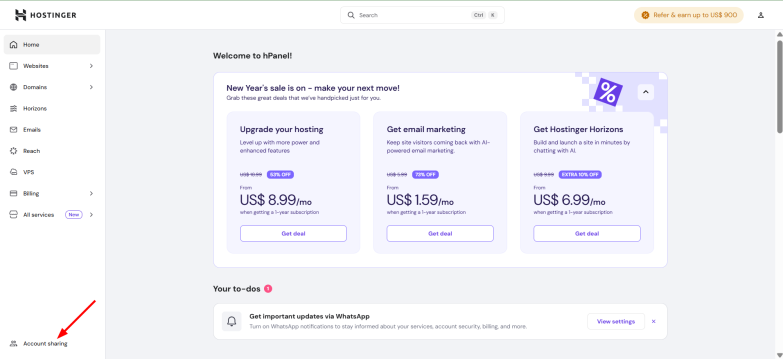
2. Access the “Account Sharing” section
- Click on your profile icon in the top-right corner
- Select Account Sharing
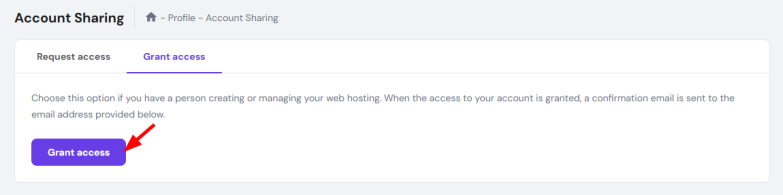
3. Click “Grant Access”
Click the Grant Access button to add a new collaborator.
4. Enter ChemiCloud’s email address
Add the following email address: [email protected]
5. Configure access permissions
When granting access, make sure to:
- Select the appropriate access level
- Choose the hosting service or website you want us to access
- Allow access to website management, files, databases, and hosting settings
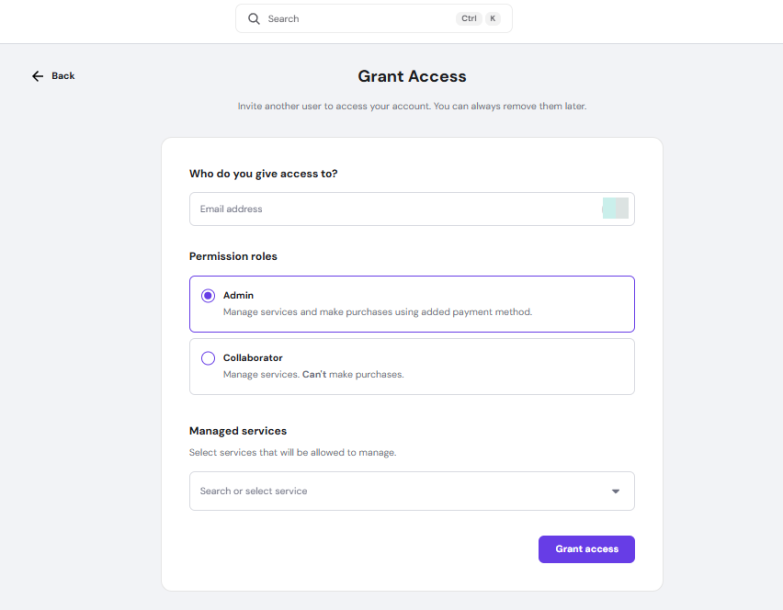
6. Send the invitation
- Click Grant Access to send the invite
- Our team will receive an email and accept the request
What Happens Next?
Once access is granted, our team can securely review your hosting environment, troubleshoot issues, and assist with setup while your account ownership and billing remain fully under your control.
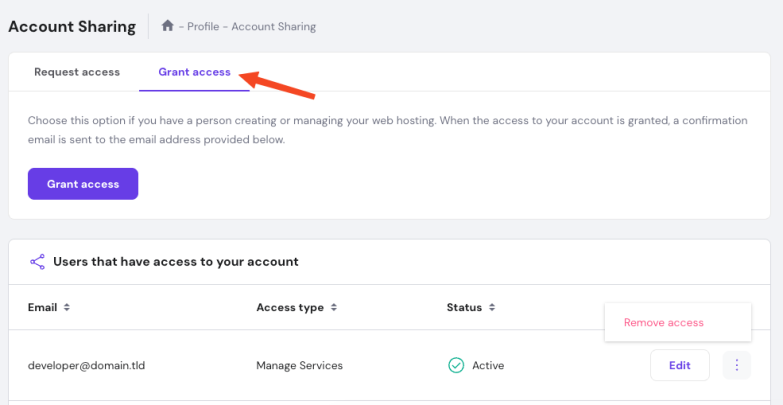
Managing or Removing Access
You can revoke access at any time:
- Go back to Account Sharing
- Locate [email protected]
- Click Remove Access
Need Help?
If you are unsure about any step, feel free to open a support ticket and our team will be happy to guide you through the process.