
It this article we will show you how to easily register private nameservers for a domain name registered with ChemiCloud.
Step 1) Login into your ChemiCloud account here.
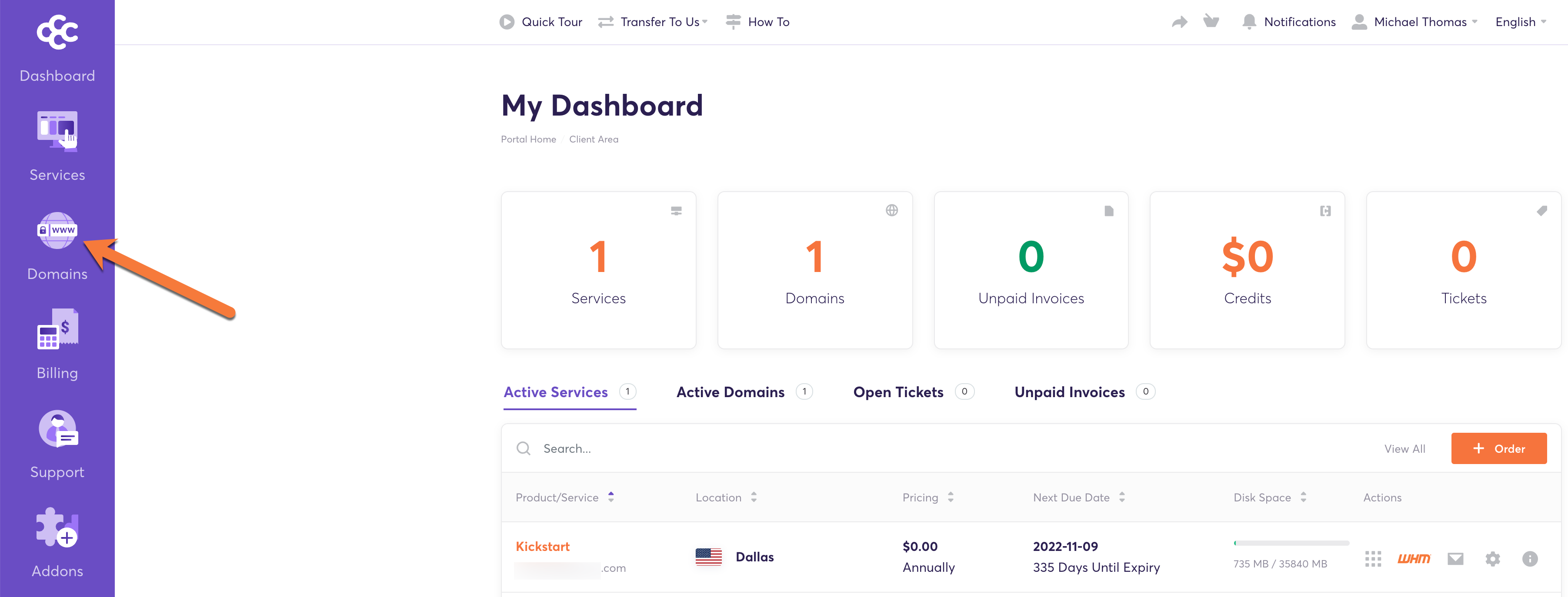
Step 2) Click on the Domains button located on the left side menu.
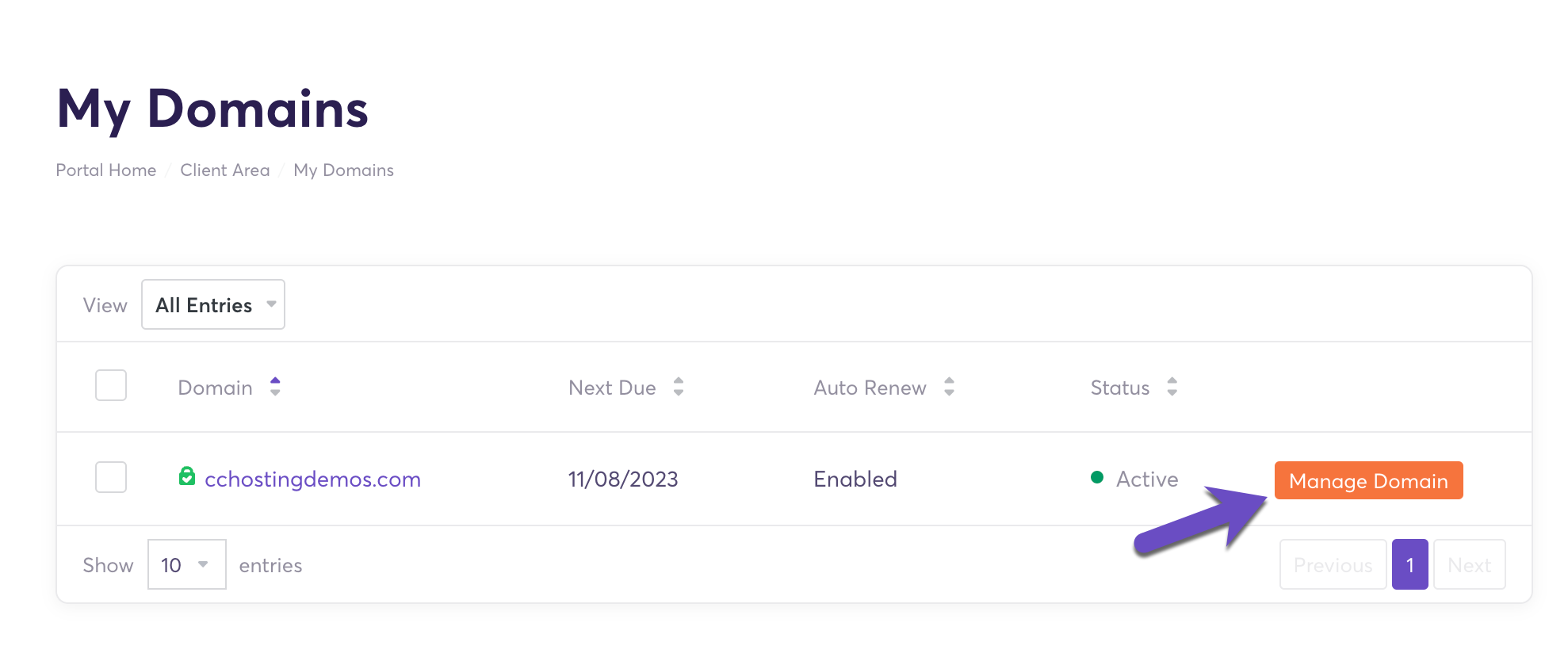
Step 3) Click on the Manage Domain button located next to the domain you want to register the nameservers for.
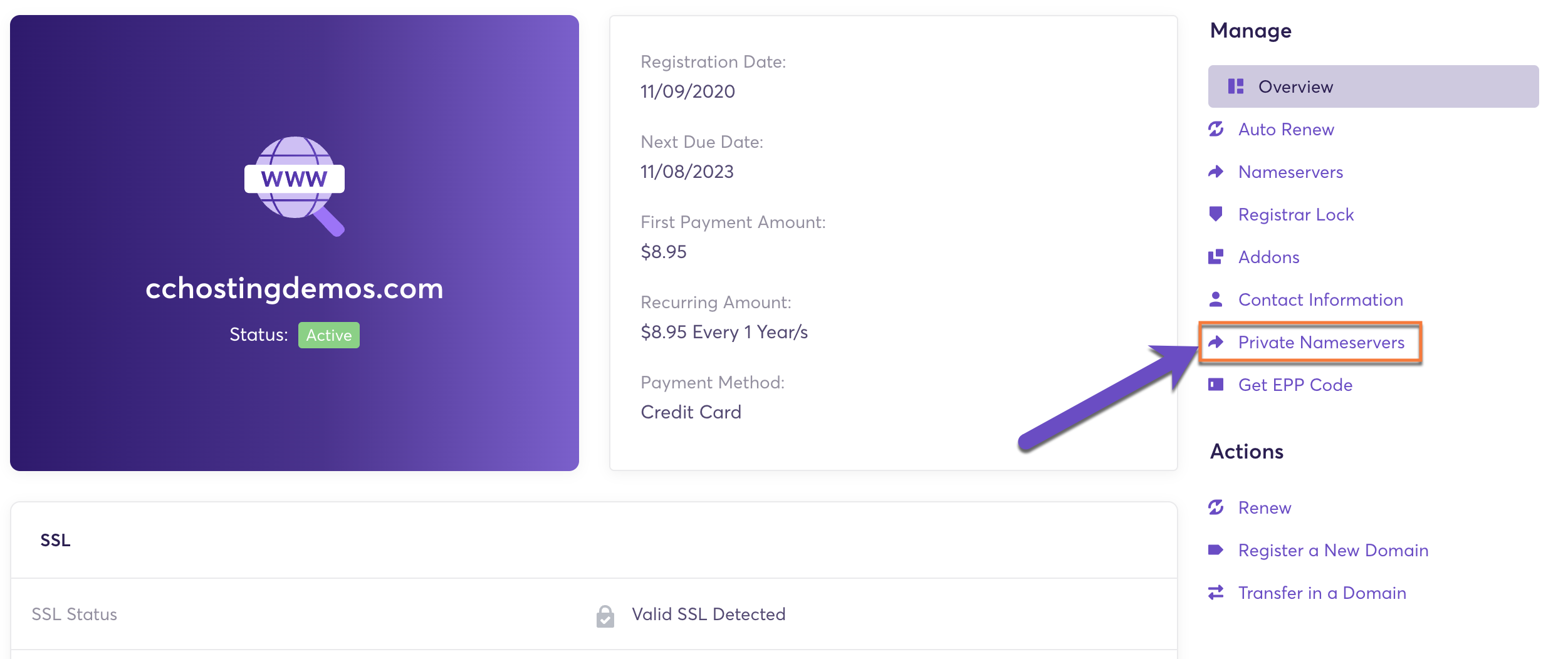
Step 4) Under Manage left-hand side menu click on Private Nameservers.
Step 5) On this page, you can create and manage custom nameservers for your domain.
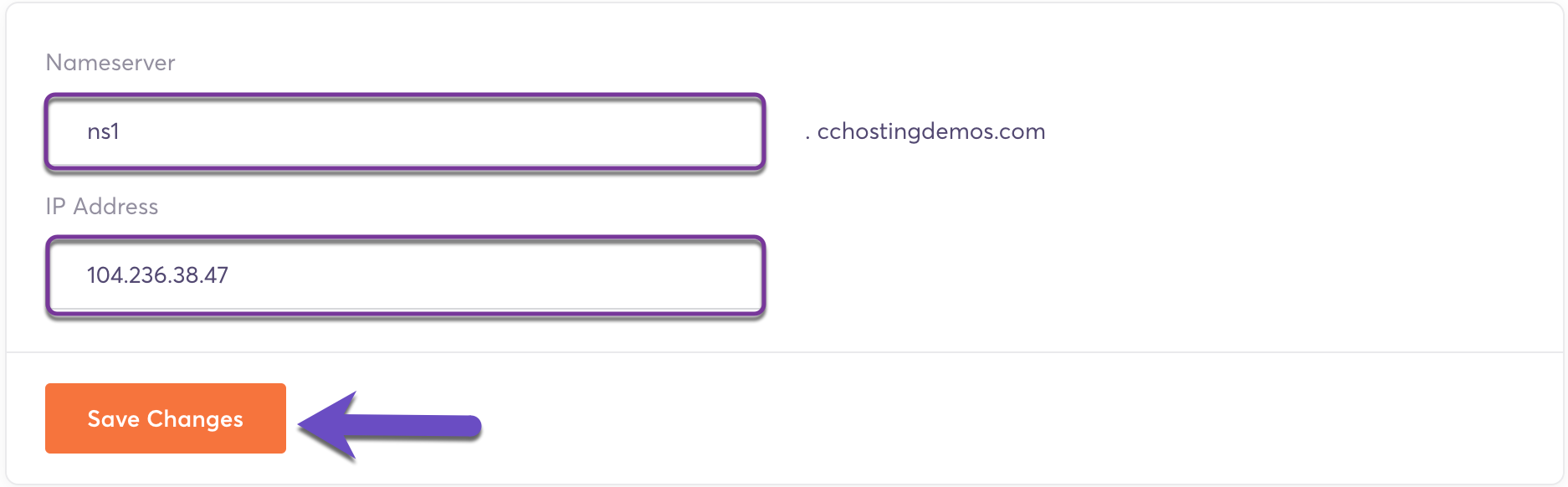
Click Save Changes – Your primary nameserver has been registered.
6) You have to repeat this operation if you want to register your secondary private nameserver:
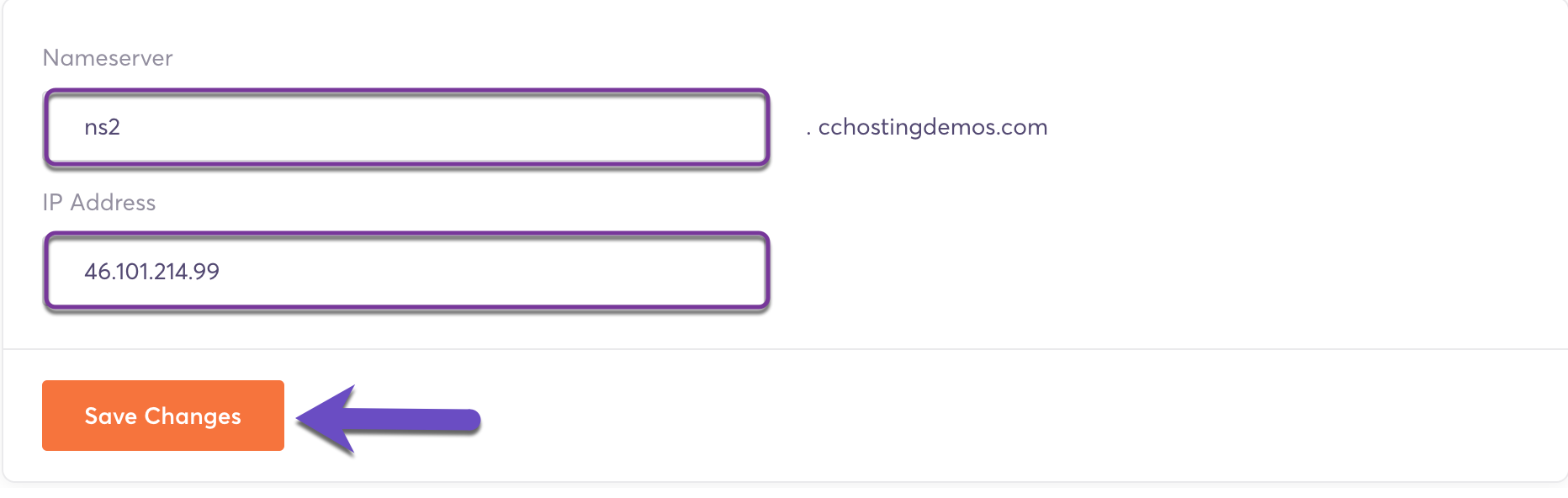
Click “Save Changes” – Your second nameserver has been registered.
7) Finally, you have to repeat this operation if you want to register your 3rd private nameserver:
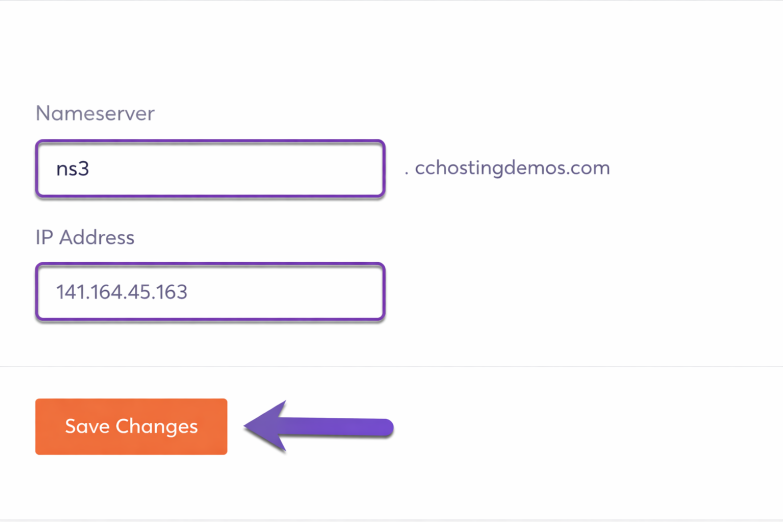
Click “Save Changes” – Your 3rd nameserver has been registered.
A confirmation message will appear each time if the nameservers have been added successfully.
That’s it! Now you know how to register private nameservers for a domain name registered with ChemiCloud.
After clicking Save Changes and getting the confirmation, there seems to be no way to confirm the private nameservers have been added. The page remains blank. Is this normal behavior?