
In this tutorial, we will show you the steps on how to easily register private nameservers for a domain name registered with HostGator.
What are Private Nameservers?
Private nameservers allow you to set up nameservers for your own domain of choice. Let’s say you are operating a web hosting business and don’t want people to Google our nameservers and find out you really resell hosting thru us. Using private nameservers, you can avoid just this problem.
Having your own nameservers also gives you a more professional appearance than just plain nameservers, for example. ns1.bobshostingshack.com is pretty professional compared to our default nameservers. 😏
How do I Register Private Nameservers With HostGator?
Step 1: Login into your HostGator account.

Step 2: When your account portal opens, click Domains from the left menu.

Step 3: You will see a list of domains registered with HostGator. Click the More button for the domain you wish to set up custom nameservers to expand the domain tools:

When the domain tools open, click the shield icon on the left to open the Private Nameserver editor.

Step 4: In the Private Name Servers tool, you have two boxes. The first is where you would name your nameserver and the second box is for the IP address which corresponds to the private nameserver.

In the first box, enter ns1.yourdomain.tld where yourddomain.tld is your domain name + extension.
In the second box, enter our primary nameserver IP address: 104.236.38.47.
Looking for a Namecheap alternative? 👀 Join the growing club of happy customers who made the switch to better, faster reseller hosting!
Your settings should look similar to the image below:

To add the second nameserver, click the + to the right and a new field will be added:

In the first box on the second line, enter ns2.yourdomain.tld where yourdomain.tld is your domain name + extension.
In the second box on the second line, enter the IP address for our secondary nameserver: 46.101.214.99.
Your configuration thus far should look like the image below:

To register your third private nameserver, click the + button once more. A third row will appear.
In the first box on the third row, enter ns3.yourdomain.tld where yourdomain.tld is your domain name + extension.
In the second box on the third row, enter the IP address for our third nameserver: 141.164.45.163.
Your configuration so far should look like the image below:
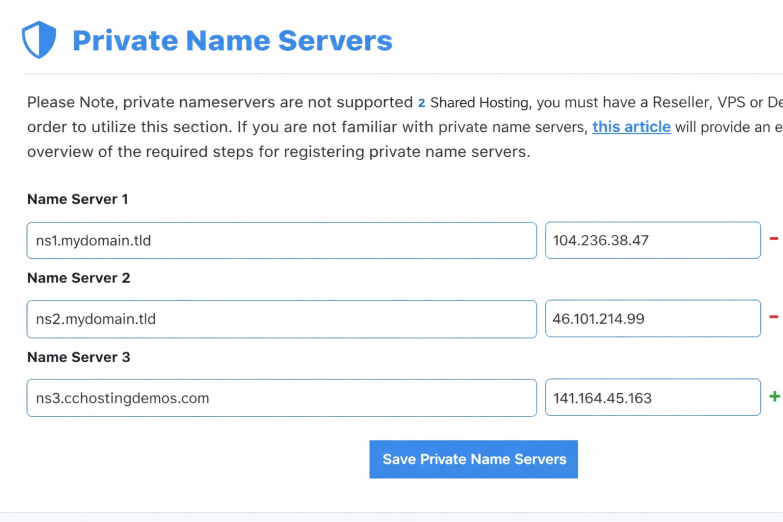 Once you have finished, click the big blue Save Private Nameservers button to make your changes.
Once you’ve registered your nameservers, please do not forget to create the corresponding A records for them in your domain name zone file within cPanel.
That’s a wrap! Now you know how to Register Private Nameservers With HostGator.