Live Chat
 Help Center

The site moved on Monday. It loads faster than it did, the client said “looks great,” and you crossed them off the list. On Thursday they ask, a little carefully, whether you’ve seen the enquiry their biggest prospect says they sent on Tuesday.
Nothing went down. The site was up the whole time. That’s the problem with “without downtime” as a goal: it describes the part of a migration that almost never goes wrong. The parts that do go wrong are quieter — mail that lands on a server you’ve stopped looking at, orders written to a database you’re about to abandon, a certificate warning at 7am, an old account cancelled a week too soon.
This guide covers moving client sites onto your reseller account so that none of that happens, whether you’re moving three clients or three hundred accounts. It sits in the set-up stage of starting a reseller hosting business. One thing comes before it: if a client doesn’t yet know you’re taking over their hosting, telling existing clients you’re taking over their hosting is the conversation to have first. Migrating someone’s site before they’ve agreed to it is how a technical success becomes a relationship problem.
If you’re moving a whole book of accounts from another provider, read the sequence, then skip to the section on moving a whole book.
Table of Contents
- The short answer
- “Downtime” is four different failures
- Before you touch anything: the per-client audit
- Who should do the move: you, your provider, or both
- Set up the destination before you copy anything
- The zero-downtime sequence, step by step
- Email: the part clients notice
- Sites that need special handling
- Moving a whole book: batches, trackers and nameservers
- The first two weeks after the switch
- Mistakes that turn a clean migration into a support week
- Frequently asked questions
The short answer
- Audit access and what’s running on each account before you buy or copy anything.
- Build and test the new copy while the old site stays live.
- Lower the DNS TTL at least a day before the switch.
- Freeze changes, do a final sync, switch DNS.
- Verify mail, forms, orders and SSL from outside your own network.
- Keep the old hosting for two weeks before you cancel it.
Until step 6, every step can be undone with one DNS change. That’s the whole safety model: nothing is destroyed until you’ve watched the new setup work for long enough to trust it.
“Downtime” is four different failures
When people say a migration had no downtime, they usually mean the first row of this table. The client means all four.
| Failure | What the client sees | Why it happens | What prevents it |
|---|---|---|---|
| Site unreachable | An error page | DNS switched before the copy was ready, or the old account cancelled too early | Copy first, switch last, cancel much later |
| Certificate warning | “Not secure”, or a browser that refuses to load the page | The new server can’t issue a free certificate until the domain points at it | Plan the SSL gap before the switch |
| Missing email | Nothing — until someone asks “didn’t you get my email?” | Mail delivered to the old server during propagation, or mail records lost when DNS moved | Recreate the DNS zone exactly; resync mail after the switch |
| Missing data | Orders, bookings, form entries or comments that aren’t there | Written to the old database after the copy was taken | Freeze changes for the final sync |
The first row is the one tutorials solve and the one uptime monitors measure. It’s also the easiest: if the old site is still running when DNS changes, visitors reach one copy or the other, and both work.
Rows three and four produce the phone call, because they’re silent. Nobody sees an error. Something that should have arrived simply didn’t. And both depend on decisions made during the cutover — when to switch, what happens to the DNS zone, when to stop writing to the old database — not on who copies the files.
Before you touch anything: the per-client audit
Most migrations that go wrong went wrong here, before a single file moved.
Access: the hosting, the domain, the DNS
There are three logins involved, and people treat them as one:
- The hosting account — where the files, databases and usually the mail live.
- The registrar — where the domain is registered. This is where the domain’s nameservers are set.
- The DNS host — where the actual records live. Often the registrar, sometimes the old host, sometimes Cloudflare.
Knowing which of the three holds DNS decides how you’ll switch. Find all three before you do anything else, and expect at least one of them to be registered to an email address nobody checks.
You don’t need to transfer the domain to migrate the site. Moving the hosting and moving the registration are separate jobs, and doing both in the same week doubles the number of things that can go wrong at once. Move the hosting first. Transfer the registration later, if there’s ever a reason to.
On access itself: use the old host’s delegation feature if it has one, or a password-manager share. Not an email, not a support ticket, and never a comment box on anyone’s website. Once the move is done, have the client change the password.
What’s actually running on the account
Files and a database are the obvious parts. These are the ones that either don’t come across or come across and break:
- Email — where it’s hosted, and how much there is. It gets its own section below.
- Cron jobs and scheduled tasks — the backup plugin, the feed import, the nightly report.
- PHP version and extensions — match them on the new account before the copy, not after.
- Hardcoded paths or IP addresses in configuration files.
- Anything outside the server that knows about the server: payment gateway webhooks, API keys restricted to an IP address, SMTP plugins, uptime monitors, CDN origin settings.
- How much the site writes. A brochure site barely changes. A shop, a booking system or a membership site changes every few minutes, and that decides how careful the final sync has to be.
- Whether it’s clean. A compromised site migrated is a compromised site on your account. If there’s any doubt, deal with it first — when a client site gets compromised covers how.
The audit checklist
One row per item, per client. Keep the finished table — it becomes your permanent record of where each client’s pieces live.
| Item | Where to find it | Why it matters |
|---|---|---|
| Is the site on something you can move? | Look at the admin | Wix, Squarespace or a site builder means a rebuild with a quote, not a migration |
| Hosting login | Client, or their old invoices | No login, no full account backup |
| Control panel type | The login page | cPanel to cPanel moves in one piece; anything else moves in parts |
| Registrar and login | WHOIS lookup, client’s email | You’ll need it if nameservers change |
| Who hosts DNS | Nameserver lookup | Decides how you switch |
| Current TTL on the main records | DNS host | Tells you how early to lower it |
| Where email lives | MX records | Decides which email procedure applies |
| Mailbox count and size | Old control panel | Large mailboxes take longest and fail quietest |
| Disk usage and file count | Old control panel | Must fit the package you’ll create |
| PHP version | Old control panel or site health | Set it on the new account first |
| Cron jobs | Old control panel | Recreate or they silently stop |
| External integrations | Plugin list, payment dashboard | Webhooks and IP allowlists need updating |
| How much the site writes | Is it a shop, bookings, members, comments? | Decides whether you need a maintenance window |
| Existing SSL certificate | Browser padlock, old control panel | Decides how you handle the SSL gap |
Who should do the move: you, your provider, or both
Every reseller host’s sales page answers this with “free migrations!” Here’s the honest version.
| Where the site is now | Best route | Why |
|---|---|---|
| Client’s own cPanel account at another host | Your provider’s migration team | A full account backup brings files, databases, mail, cron jobs and settings across in one piece |
| Non-cPanel host (Plesk, a custom panel, a managed WordPress platform) | Provider, or you | Files and databases copy fine; mail needs an IMAP sync and passwords may not survive |
| One small WordPress site, and you’re comfortable | You, with a migration plugin | Fine for files and database — mail and DNS still need handling separately |
| Your previous reseller account or VPS | Provider, in batches | Volume and mail make doing it yourself a false economy |
| Wix, Squarespace or another site builder | Neither | There’s nothing to migrate; it’s a rebuild |
One detail explains most of that table. On a reseller account, WHM’s tools for restoring a full cPanel backup into a new account are normally root-level. You can create accounts, but on most reseller plans you can’t upload a client’s full backup file and restore it yourself. That’s why provider migration teams exist, and why “just download a backup and upload it” tends to stall on a reseller plan.
Handing the copy over doesn’t hand over the cutover. A migration team can move a site perfectly and still hand you back a copy that’s waiting on a DNS change only you can make. When to switch, what happens to the DNS zone, and when the old account is cancelled all stay with whoever controls the domain — which, from now on, is you.
The practical constraint worth knowing before you buy anything is timing. Most free migration offers run from the day the plan is activated, not from the day you’re ready. ChemiCloud’s covers up to 200 cPanel accounts, including moves from a client’s account at another host into the specific account you’ve created for them in WHM, requested within 60 days of activation (checked September 2026). So do the audit before you buy the plan, not after. And if you’re moving clients one at a time as each renewal comes round, that rollout can run well past 60 days. Either migrate early and start billing each client from their old renewal date, or ask before you start — the window is handled case by case.
Set up the destination before you copy anything
A day or two before the copy, not during it:
- One cPanel account per client, not several clients as addon domains on one account. Suspension, backups and resource limits all work per account, and the reasons are in cPanel & WHM for resellers.
- Create it on the right package so the site fits the disk and file limits it’s about to arrive with. How to create hosting packages in WHM covers building them.
- Use the site’s real primary domain when you create the account, so the restore lands where it should.
- Set the PHP version to match the old account.
- Set the account’s contact email deliberately. It’s where quota and suspension notices go, and it’s one of the places where white-label hosting shows its seams.
The zero-downtime sequence, step by step
A day or two before: lower the TTL
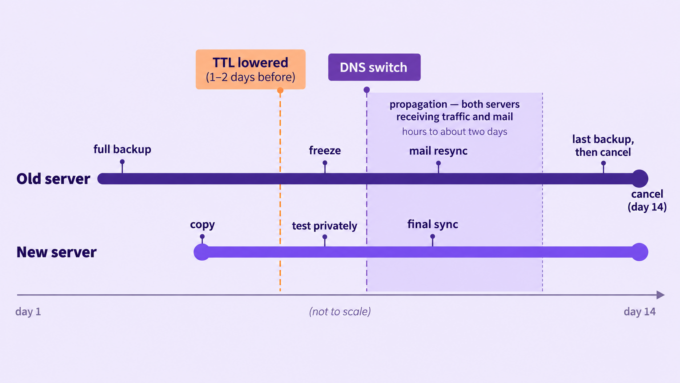
TTL is how long other systems may cache a DNS answer before asking again. Lower it to 300 seconds on whichever DNS host is authoritative today — at least one full old-TTL period before the switch, because the old, longer value has to expire everywhere before the short one does any good. If the current TTL is 24 hours, lower it at least 24 hours ahead.
What TTL can’t do: speed up a nameserver change. Which nameservers answer for a domain is cached at the registry level, often for up to two days on common extensions, and nothing you set in your zone shortens that. Lowering the TTL helps when you change a record. It doesn’t help when you change who holds the records. That distinction decides the next choice, so keep it in mind.
Copy, then test privately
Take a full backup at the old host first and keep it somewhere that’s neither server. It’s your way back if everything else fails.
Then copy — yourself, or by request to your provider.
Test the new copy before anyone else can see it by overriding DNS on your own machine with a hosts-file entry: one line that tells your computer, and only your computer, to load the domain from the new server’s IP address. Temporary preview URLs are less useful than they look: WordPress usually redirects them straight back to the live domain, so you end up testing the old site and believing it’s the new one.
Click through what matters: the home page, a page heavy with images, a contact form, the login, the admin, and the checkout if there is one.
Then don’t let it sit. The most common ticket our migrations team sees after a move isn’t a broken site. It’s a finished copy waiting on a DNS change that nobody has made. Every day it waits, the live site drifts away from it — a new blog post, a new order, a changed price — and the copy you tested stops being the copy you’ll switch to. Schedule the switch before you request the copy, not after.
Freeze, final sync, switch
For a brochure site, a content freeze is enough: tell the client not to edit anything until the day after the switch.
For anything that writes — shops, bookings, memberships, busy comment sections — schedule a short maintenance window at the site’s quietest hour. Look at the analytics rather than guessing; the quietest hour for a local restaurant is not the quietest hour for a store that ships abroad. Put the old site in maintenance mode, take a final copy of the database, restore it on the new server, then switch.
Switching an A record vs switching nameservers
There are two ways to point a domain at the new server, and they behave very differently.
| Change the A record | Change the nameservers | |
|---|---|---|
| Use when | DNS stays where it is — the registrar, Cloudflare | You’re moving DNS to your own or your provider’s nameservers |
| Speed | As fast as the TTL you lowered | Slow — cached at registry level, often up to two days |
| Rolling back | One record, fast | Same slow caching in reverse |
| Main risk | Forgetting www, subdomains or other records that point at the old IP | A new zone missing a record — usually MX, SPF, DKIM or a verification TXT |
If the client’s DNS is somewhere stable that they or you control, change the A record (and any others pointing at the old server) and leave DNS where it is. Move DNS later, separately, if you ever need to. One change at a time.
If you’re moving the domain onto your own branded nameservers — setting up private nameservers covers the set-up — rebuild the zone first and compare it with the old one record by record before you touch the registrar. Every record in the old zone needs a reason to be missing from the new one.
The SSL gap
A new server usually can’t issue a free certificate for a domain until that domain points at it, which leaves a window where visitors reaching the new server may see a warning. Two ways to handle it:
- Close the gap. If the old certificate is still valid and you can export it, install it on the new account before the switch. Visitors arriving at either server get a valid certificate, and the free one takes over when it’s issued.
- Shrink it. Switch at a quiet hour and trigger certificate issuance as soon as the new server sees the domain.
If the site sits behind Cloudflare’s proxy, visitors see Cloudflare’s certificate, and the gap mostly disappears.
Verify from the outside
Your own computer has the old answer cached, and your hosts file may still point at the new server — both of which make everything look fine from your desk. Check from elsewhere:
- A DNS propagation checker, to see the new answer arriving across regions.
- The site on mobile data, with Wi-Fi off.
- An email sent to the domain from an outside address, and one sent from the domain to an outside address.
- A form submission, and a test order where there’s a shop.
- The certificate, in a private browser window.
Then keep watching the old server’s access and mail logs for a few days. Traffic still arriving there means propagation isn’t finished — and it’s also the evidence you’ll need before you cancel anything.
Email: the part clients notice
The site is what you’ll check. The mail is what the client will notice. Which procedure applies depends on where the mail lives.
Mail at Google Workspace or Microsoft 365. This is a non-event, and for many clients it’s the most reassuring sentence you can say. The mailboxes aren’t moving. What matters is that every record the mail service depends on — MX, SPF, DKIM, DMARC, and the autodiscover and verification records — comes across exactly. With an A-record switch those records never move, so there’s nothing to break. With a nameserver switch, a single forgotten record is enough to stop mail or send it to spam, which is why the zone comparison above isn’t optional.
Mail in the old cPanel account. A full-account migration brings the mailboxes across, generally with their passwords, so the client’s phone and laptop keep working. The risk is the propagation window: for a day or two, some senders’ servers will still deliver to the old host. After the switch, run a final IMAP sync from the old mailboxes to the new ones — or ask your provider to — and leave the old mailboxes in place until the logs show nothing new arriving.
Mail on a non-cPanel host. Messages move by IMAP sync, but passwords often don’t survive, so every device the client uses needs reconfiguring. This is where the support time in a migration really goes. Do it with the client on a call, device by device, rather than by sending instructions, and do it the same day as the switch.
Outbound mail needs one check too. SPF has to authorise wherever the new server sends from. Many providers add their sending route to the SPF record automatically — but only in zones they host. If the domain’s DNS stays at Cloudflare or the registrar, that automatic addition happens somewhere nobody’s looking, and you have to update SPF by hand.
One rule to close on: don’t delete the old mailboxes until you’ve seen a full week with nothing new arriving in them.
Sites that need special handling
Shops, bookings and memberships. The maintenance window matters, and so does what happens after it. Check payment gateway webhooks, re-save any IP allowlists on payment or shipping APIs, and place a real test order.
Sites behind Cloudflare. The easiest zero-downtime case there is. Visitors connect to Cloudflare, not to your server, so you change the origin IP in the Cloudflare dashboard and nothing has to propagate publicly.
Large sites. Check the disk usage and file count against the destination package before the copy. A reseller plan that’s reached its limits won’t let you create new accounts, and discovering that halfway through a batch is avoidable.
Sites on outdated PHP. The migration is often when you find out. Resist fixing it at the same time: move the site on the PHP version it runs on, confirm it works, then upgrade as a separate job, quoted separately if it needs development work.
Sites that might be compromised. Clean first, then move. The new server’s scanning will likely catch it after it arrives, but by then it’s your account’s problem and your client’s bad week.
Multisite, headless or unusual stacks. Hand them to your provider’s team or budget a full day. Either way, don’t make one your first migration.
Moving a whole book: batches, trackers and nameservers
This section is for anyone moving dozens or hundreds of accounts from another reseller plan or a server of their own. If you’re moving a handful of clients, skip to the first two weeks.
Waves, not a weekend
- Start with a pilot wave of two or three low-risk accounts. Your own site and a brochure client are ideal.
- Size each wave by how many accounts you can verify in a day, not by how many can be copied. Copying is fast. Checking mail, forms and certificates is not.
- Order the waves: brochure sites first, shops and heavy-mail accounts once the process has proved itself, awkward outliers last.
- Track every account in one spreadsheet, a row per account, with a column for each state: audited, copied, tested, TTL lowered, switched, mail resynced, verified, old account cancelled. Nothing should move to the next column on memory.
- Import clients into billing before the first wave. If you’re changing billing platforms too, WHMCS vs Blesta covers the choice. Either way, check that nobody will be invoiced twice or not at all in the month you switch.
If your clients already use your nameservers
If every client domain already points at ns1.yourbrand.com and ns2.yourbrand.com, you have an option nobody else in this guide has: you don’t need to touch a single client domain.
Load every client’s zone onto the new platform. Verify them. Then, at the registrar where yourbrand.com is registered, update the glue records — the IP addresses your nameserver hostnames resolve to — so they point at the new platform’s nameservers. Every domain that uses your nameservers moves together, and clients do nothing.
It’s powerful, and it’s all-or-nothing. Every site and every mailbox cuts over in the same window, and a zone you forgot to load is a client who’s offline. So if you do it:
- Every account is copied and tested first, not most of them.
- The whole book is under a content freeze for the switch, or you’ve accepted that you’ll resync the changes afterwards.
- You’ve written down the rollback — the old glue IPs, and who changes them back — before you start.
The alternative is slower and safer: move in waves, repointing each batch’s records to the new servers, and retire the old nameservers only when the last wave is verified. If you’ve never done a glue swap, move in waves. The glue swap is for the operator who has, and who has a quiet weekend and a written rollback.
The first two weeks after the switch
Days one to three. Watch the old server’s logs for traffic and mail. Run the mail resync. Answer anything odd the same day — a small problem reported early is a conversation; the same problem found in a month is an incident.
Around day seven. If nothing is arriving on the old server, put the TTL back to a normal value.
Day fourteen. Take one last full backup from the old account, keep it, then cancel. Not before.
The same fortnight:
- Confirm the new account’s backups have started. Backup history on the new server begins from zero, and who’s responsible for what now sits with you — backups, and who’s responsible when a client deletes their site sets that out.
- Update the audit table for that client with where everything now lives: registrar, DNS host, account, renewal date.
- If something did go wrong and a client noticed, handling downtime: a communication plan covers what to say.
Mistakes that turn a clean migration into a support week
- Cancelling the old hosting as soon as the new site loads.
- Changing the hosting, the DNS host and the registrar in the same week.
- Switching nameservers into a zone that’s missing an MX, SPF or DKIM record.
- Letting a tested copy sit for a week before changing DNS.
- Testing on a temporary URL that quietly redirects to the live site.
- Migrating a shop without a maintenance window for the final sync.
- Upgrading PHP in the middle of the move.
- Starting with your most important client.
- Naming a migration date to a client before you know when your provider can do it — telling existing clients you’re taking over their hosting covers timing the promise.
Frequently asked questions
How long does it take to migrate a client site? The copy often takes minutes to a few hours. The migration takes about two weeks, because the tail — propagation, the mail resync, watching the old server go quiet — is the part that protects you. Plan for the fortnight, not the copy.
Will moving hosts affect the client’s search rankings? Not if the URLs, content and HTTPS stay the same and the site doesn’t spend hours unreachable. Keep structural changes, redesigns and URL changes out of the migration and do them separately.
Do I need to transfer the domain to move the site? No. Hosting and domain registration are separate. You can move the site and leave the domain registered where it is, indefinitely if you like.
What TTL should I set before migrating? 300 seconds, set at least one old-TTL period before the switch — at least 24 hours ahead if the current TTL is a day. Put it back once the old server has gone quiet.
Will the client’s email passwords change? Moving from one cPanel account to another, generally not. Moving from another platform, often yes, which means reconfiguring their devices — plan to do that with them.
Can I migrate a site without the client’s hosting login? Sometimes, from the files and a database export. But you’ll lose the mail, cron jobs and account settings that a full backup would have carried. Get the login.
Moving a handful of clients? Start with one, and take it all the way through the fortnight before you do the next. ChemiCloud’s reseller hosting plans includes the migration team for the copies — the cutover stays yours.
Moving a whole book? Talk to our migrations team before you buy, with your account count and how your nameservers are set up. It’s much easier to plan the waves, and the window, before the clock starts. Get in touch with our support team by opening a chat session.